
 Chrome Web Store
How to Show Chrome Web Store Reviews on Your Website
Import eligible Chrome Web Store reviews, choose trustworthy excerpts, and display them as verified social proof on your website.
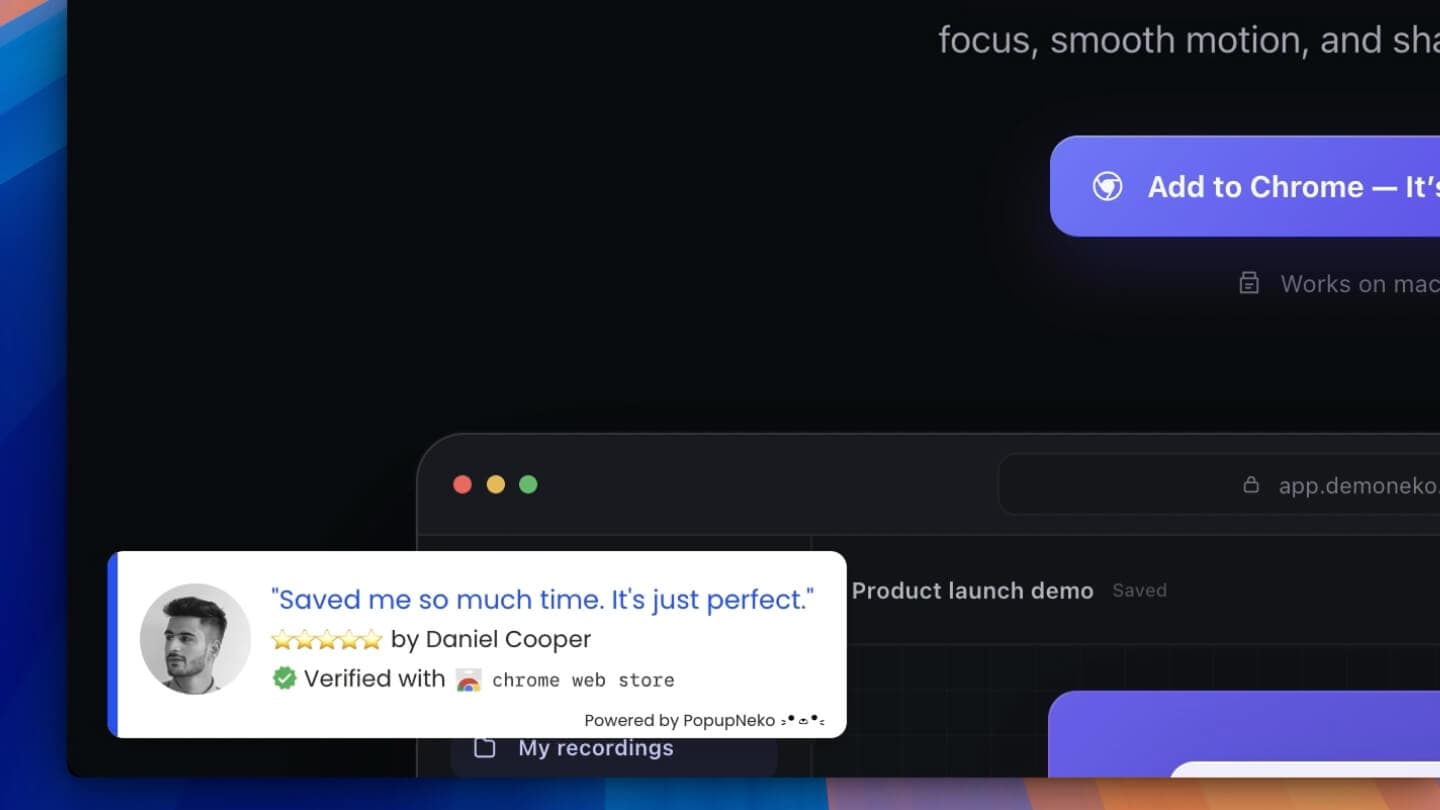
Strong Chrome Web Store reviews can help someone trust an extension, but they are easy to miss when the buying journey happens on a separate marketing website. PopupNeko lets extension publishers bring selected reviews onto that site while preserving a link to the original public source.
Unlike a payment integration, the Chrome Web Store connection does not require an API key or Google account authorization. It starts with the public listing for the extension.
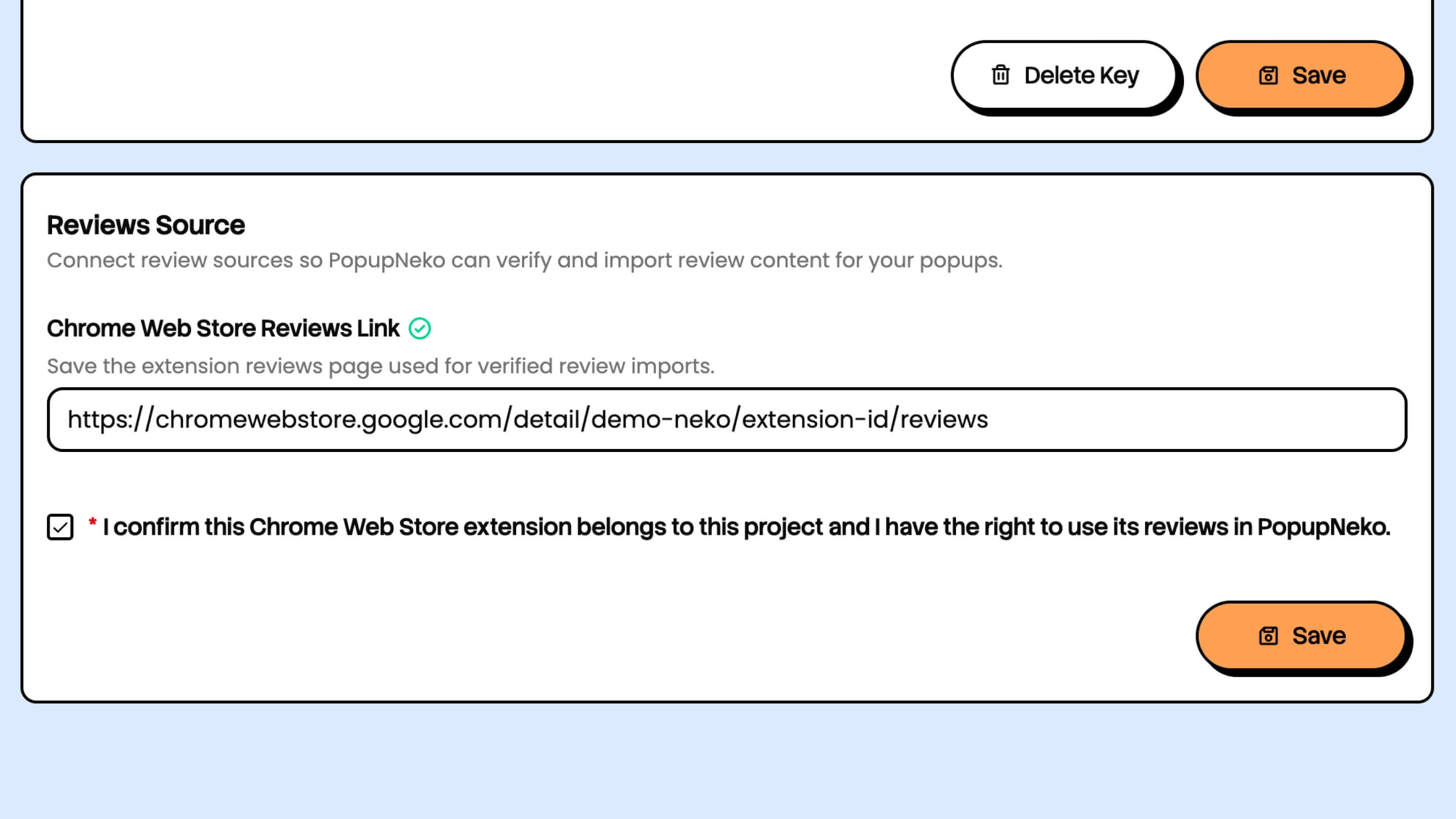
Connect the correct extension listing
Open Integrations in the PopupNeko project and find the review-source section. Enter the Chrome Web Store listing URL or extension ID, confirm that the extension belongs to the project, and save the connection.
PopupNeko normalizes the source to the listing’s reviews page. A successful connection identifies the source, but it does not automatically choose reviews for display. You remain in control of which eligible reviews appear in the popup pool.
Follow the Chrome Web Store integration guide for the current connection steps.
Import eligible reviews
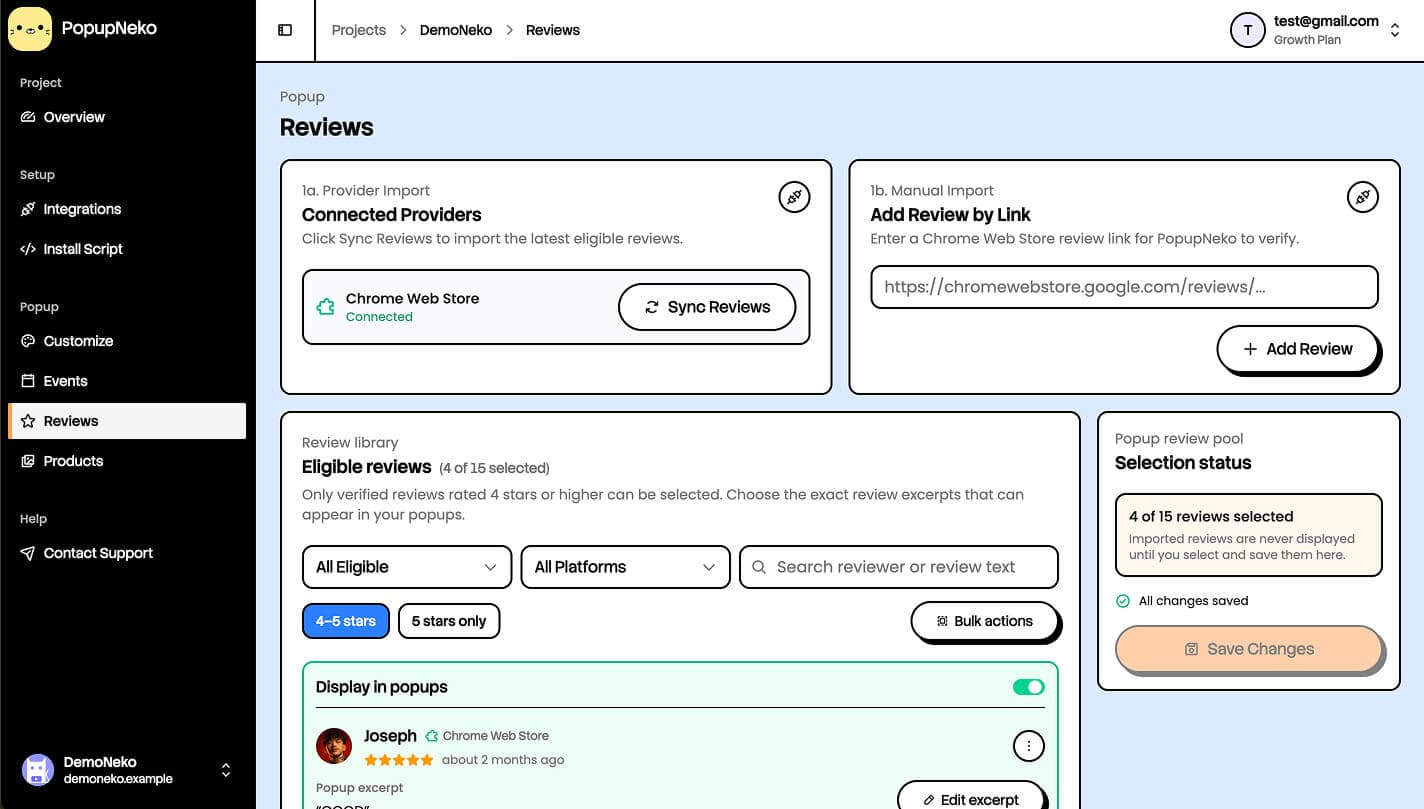
Open Reviews and run a sync to retrieve up to 15 of the newest eligible four- and five-star text reviews. You can also submit an individual public review link for verification when you need a specific review that is not in the synced group.
The import must belong to the connected extension and remain publicly verifiable. Reviews without eligible text or reviews from another listing cannot become verified PopupNeko review records.
Syncing is merchant-triggered. A new Chrome Web Store review does not automatically enter your selected popup content. Later syncs preserve reviews you imported manually, selected for display, or explicitly excluded, while older unselected sync-only records may be replaced.
Choose reviews that answer real objections
A wall of uniformly enthusiastic quotes is less useful than a focused set of reviews that helps visitors understand the product. Look for reviews that describe concrete outcomes, useful features, ease of use, or a problem the extension solved.
Use the Reviews filters to inspect eligible, selected, unselected, and excluded records. You can select up to 15 reviews across the project, but you do not need to fill every slot. A smaller, varied selection is often easier for visitors to absorb.
Create a faithful review excerpt
Long reviews may not fit comfortably inside a compact notification. PopupNeko lets you choose an excerpt of up to 130 characters for a new or edited selection.
The excerpt must remain an exact contiguous passage from the original review. Do not rewrite grammar, combine separate sentences, or add a claim the reviewer did not make. If the chosen passage ends before the review does, the ellipsis setting can signal that it is an excerpt without changing the verified words.
This constraint protects the meaning of the review. Visitors can follow the provider link to inspect the original public version for themselves.
Enable and customize review popups
Selecting reviews in the library is only one part of publication. Open Events, enable Reviews, and save the setting. Then use Customize to control the popup colors, position, timing, content, and source-link behavior.
Keep the reviewer identity, rating, excerpt, and Chrome Web Store source legible. Test your longest selected excerpt and narrower mobile widths before publishing.
For placement, consider pages where people are evaluating whether the extension is trustworthy: the homepage, feature pages, pricing pages, and download or installation pages. Avoid covering the primary Chrome Web Store install link or other essential controls.
Install and verify on your website
Add the PopupNeko script using the installation guide for your site platform. A review-only project does not need a payment provider, but it still needs live access, an enabled project, a detected script, and matching page-targeting rules.
After publishing, open the site in a private browser window and confirm that:
- The connected listing is the correct extension.
- At least one eligible review is selected and saved.
- Reviews are enabled in Events.
- The current page matches the targeting configuration.
- The original-review and verified-source links open the expected public pages.
If a review cannot be imported, open its public link while signed out and confirm that it is accessible, contains text, and belongs to the connected listing. The troubleshooting guide covers the broader display checks.
Let the original customer voice do the work
The most credible review popup does not need aggressive copy around it. A specific customer observation, an identifiable public source, and a direct verification link already give the visitor useful evidence.
Curate reviews for relevance, preserve their exact meaning, and display them at a measured pace. That keeps the social proof connected to the product experience visitors are evaluating.
Explore the complete Chrome Web Store integration, or start a free trial to bring selected extension reviews onto your website.
