
 Lemon Squeezy
How to Show Lemon Squeezy Sales on Your Website
Connect Lemon Squeezy to PopupNeko and display eligible purchases and new subscriptions as verified website notifications.
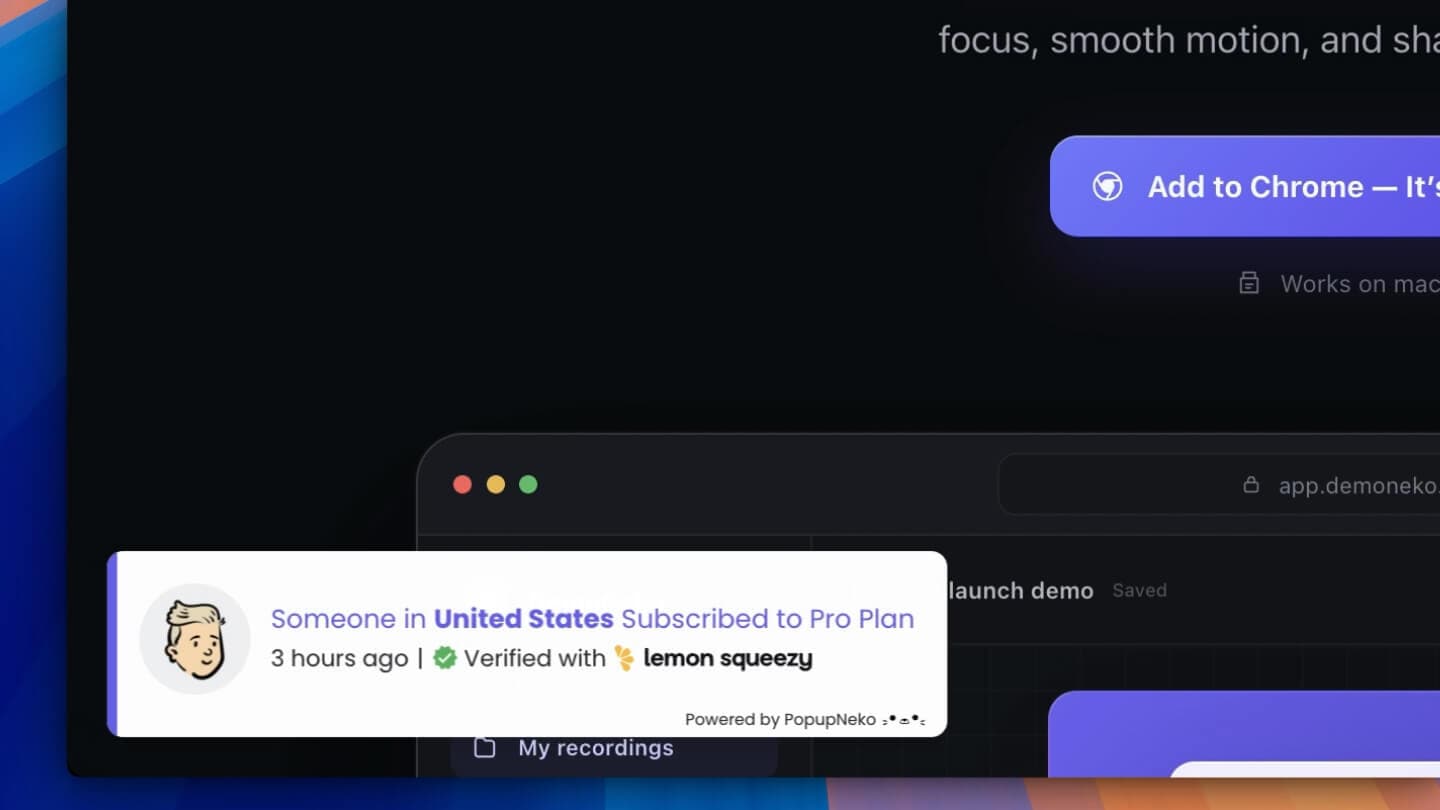
Lemon Squeezy handles the transaction, but the evidence of that activity normally stays behind the scenes. PopupNeko can turn eligible Lemon Squeezy orders and newly created subscriptions into verified social proof notifications on your website.
The setup has four parts: connect the provider, prepare product details, select the activity to show, and install the PopupNeko script.
Connect your Lemon Squeezy account
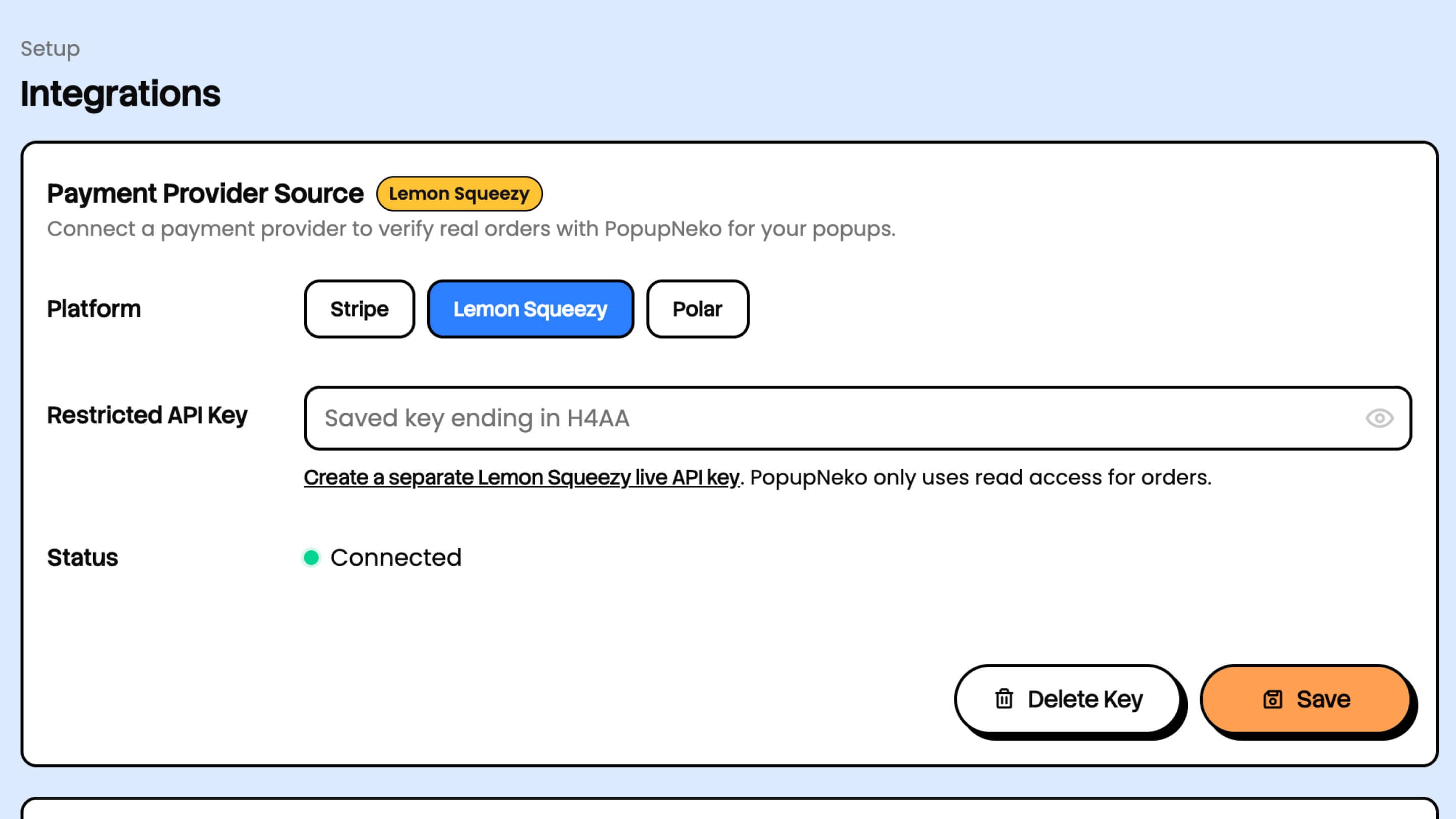
Create an API key in the Lemon Squeezy account that owns the store you want to connect. In your PopupNeko project, open Integrations, choose Lemon Squeezy as the payment provider, paste the live key, and save it.
Keep the API key private. Lemon Squeezy keys may carry permissions beyond read requests, so the key belongs only in the secure PopupNeko connection form. Never place it in your website source or the public installation script.
The complete Lemon Squeezy connection guide links to the provider settings and documents the current setup flow.
Understand which activity is supported
Paid non-subscription orders can supply sale events. When an order contains several products, PopupNeko can create an event for each distinct product so visitors see meaningful purchase activity.
New active or on-trial subscriptions can supply subscription events. Recurring renewal invoices are excluded because a renewal is not the same signal as a new customer starting a subscription.
An order can therefore exist in Lemon Squeezy without appearing in the popup feed. When checking an event, confirm that it belongs to the connected account, uses live data, matches a supported activity type, and falls inside the recency window saved in Events.
Sync and refine your products
Open Products and run a manual sync after connecting Lemon Squeezy. PopupNeko imports published products and keeps your display overrides on later syncs.
Review how every product will look in a compact popup:
- Use a concise display name that matches the offer on your website.
- Select a clear product or fallback image.
- Add the correct customer-facing product link.
- Preview the result at the popup’s actual size.
A notification is most persuasive when the visitor immediately understands what was purchased. Avoid internal names, long technical labels, or links that land on an unrelated page.
Select sales and subscriptions
Open Events and enable Sales, Subscriptions, or both. Choose how recent an event must be, save the settings, and use the real-events preview to inspect the eligible feed.
Keeping sale and subscription events separate gives you control over the story the notification tells. A one-time product business may need only purchases, while a membership or software service may want to show newly started subscriptions as well.
Location text depends on the customer or address data Lemon Squeezy returns. Configure the popup so it still reads naturally when a city or country is unavailable.
Customize and place the popup
Use Customize to set the colors, position, timing, content template, and display behavior. Match the website’s contrast and spacing, but keep the provider attribution easy to recognize.
Then decide where the activity is most relevant. A homepage can benefit from general momentum, while pricing and product pages place the proof closer to a purchasing decision. Use page targeting to include those locations and exclude checkout, account, or other pages where a popup would be unnecessary.
Install PopupNeko on your site
Copy the project script from Install Script and add it once through the appropriate website installation guide. The public script receives only the sanitized configuration and event details needed to display the notification; it does not expose the Lemon Squeezy API key.
After installation, verify the live site in a private browser window. Check the correct domain, an allowed page path, and the timing you configured. If the feed is empty, use Real events to separate an eligibility issue from a script or page-targeting issue.
Turn each sale into useful proof
The purpose of a Lemon Squeezy notification is not simply to announce that money changed hands. It should show a prospective customer that a real product is being chosen through a recognizable provider, with a verification path they can inspect.
Keep the event copy specific, the product details clear, and the display frequency measured. That combination makes the notification part of the buying experience rather than an interruption.
See the full PopupNeko Lemon Squeezy integration for supported features, or start a free trial to configure your first project.
