
Connect Chrome Web Store
Connect your extension listing, import verified reviews, and choose which ones appear in popups.
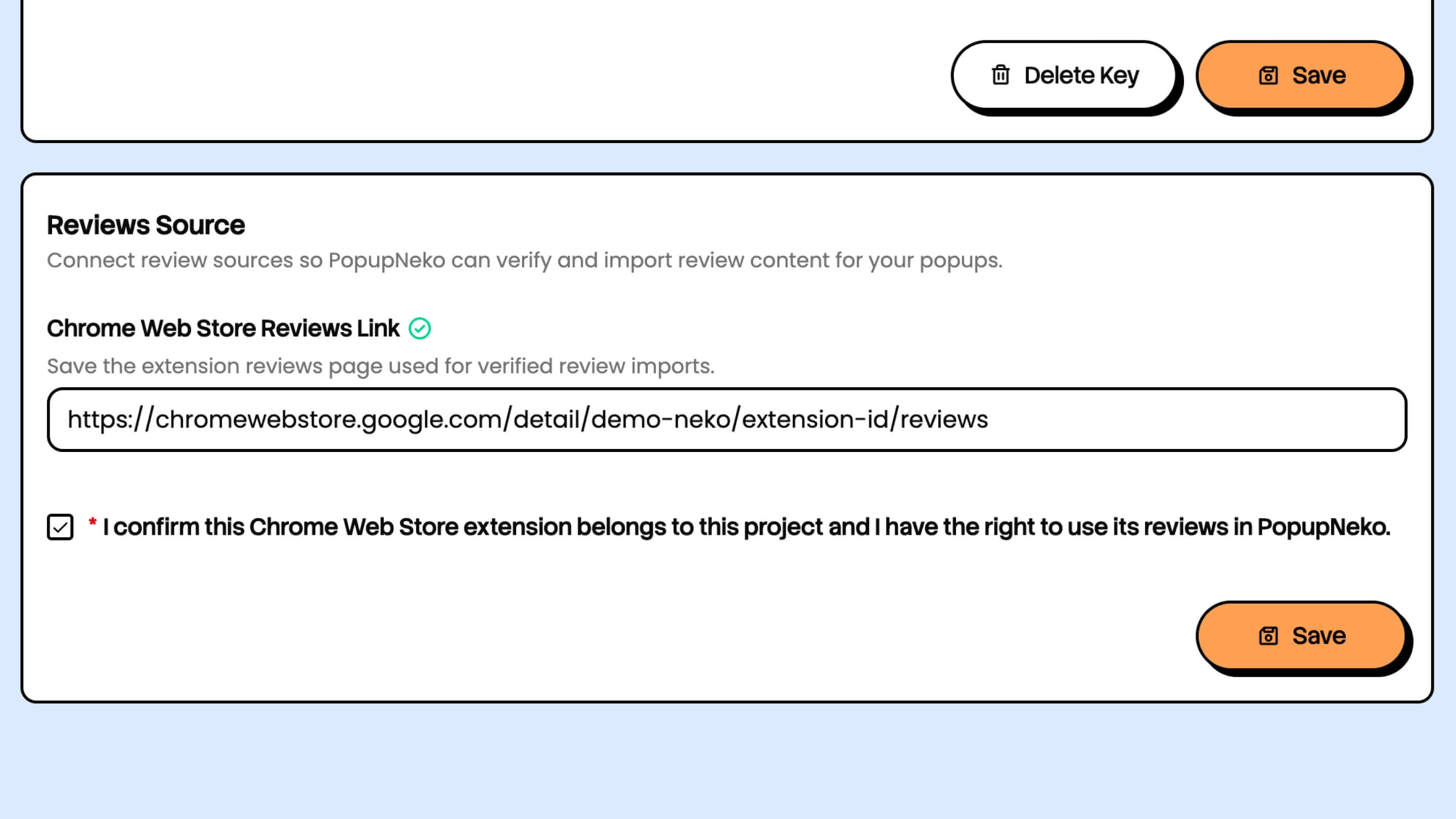
You can show verified reviews from your own Chrome Web Store extension. This connection uses its public listing rather than an API key or Google account authorization.
Connect your listing
- Open your project's Integrations page and find the review source section.
- Enter your extension's Chrome Web Store listing URL or extension ID.
- Confirm that you own the extension and save the connection.
- Check that the source is Connected with the green tick.
- Open Reviews to start importing reviews.
Use the listing for the extension represented by your project. PopupNeko normalizes the source to the extension's reviews page. A connected source does not automatically select reviews for display.
Import reviews
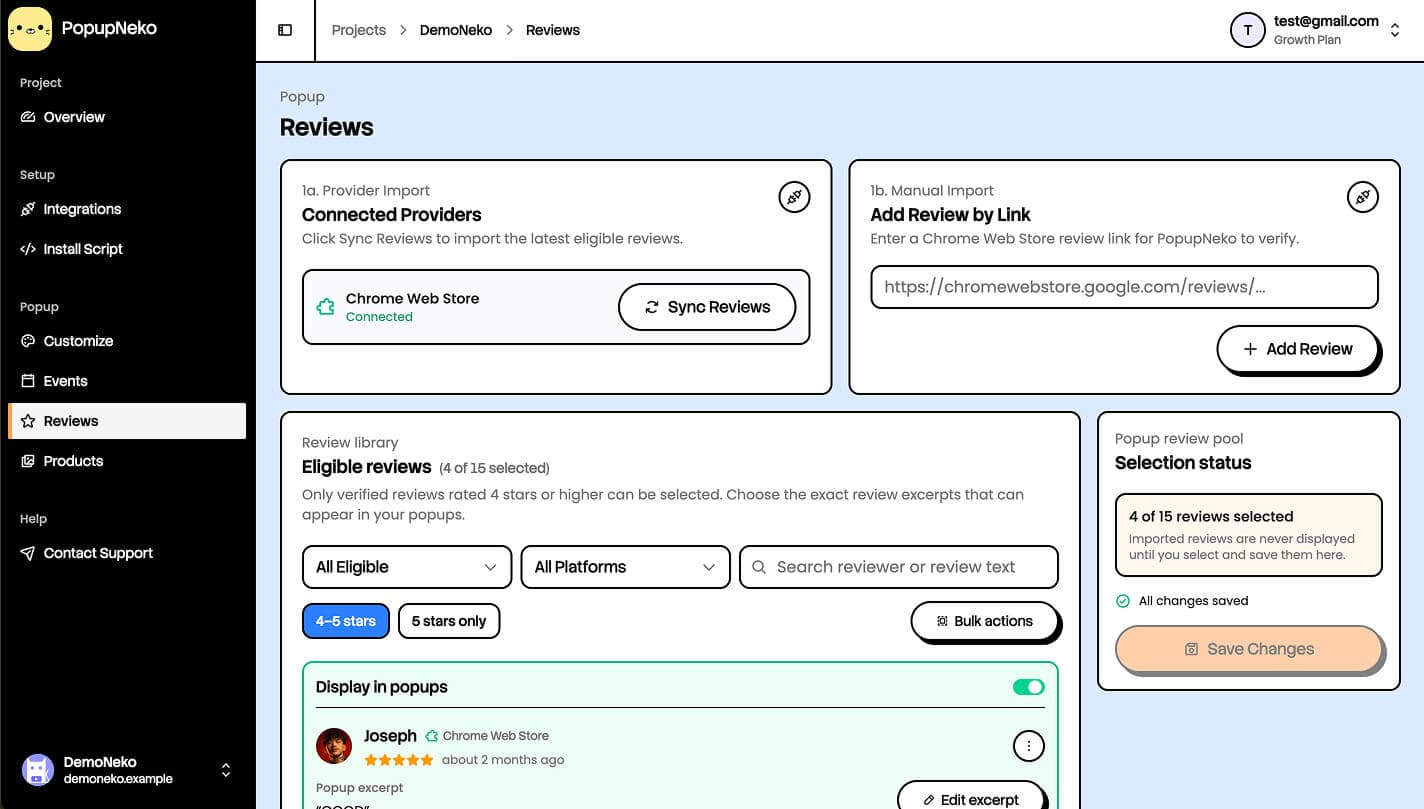
Use the sync action in Reviews to retrieve up to 15 newest eligible four- and five-star text reviews. You can also submit an individual public Chrome Web Store review link for verification. The linked review must belong to your connected source and pass verification.
Sync is merchant-triggered. New store reviews do not automatically enter your popup selection. Later syncs preserve manually imported, selected, and explicitly excluded reviews, while older unselected sync-only records may be replaced.
Review imports have usage allowances before paid access. An external verification attempt uses an allowance even if it returns no eligible review or the external request fails.
Select what appears
Turn on the Display in popups switch for the reviews you want. Hit the Save Changes button under the Selection status card to allow the selected reviews for public display. You can select up to 15 reviews across your project.
You can select the popup except of up to 130 characters for each review if needed by clicking Edit except button. Excerpts must remain exact passages from the original review. You can enable the ellipsis option to indicate an excerpt without changing its verified text. Review selection is separate from temporary bulk-action checkboxes.
Open Events, enable Reviews, and save. See Reviews for filters, bulk actions, and exclusions.
Publish review popups
Use Customize to customize your review popups' appearance and source-link behavior to match your brand. More guidance is available under Popup customization.
Finish by installing PopupNeko. A review-only project does not need a payment provider, but live access, an enabled project, and matching page targeting are still required.
If a review cannot be imported, check that its public link is accessible, belongs to the connected extension, and contains eligible review text. Try opening the original review in a signed-out browser. See Troubleshooting for source and display checks.