
 Polar
PolarHow to Show Polar Sales on Your Website
Connect a Polar organization and turn eligible orders and new subscriptions into verified social proof notifications on your website.
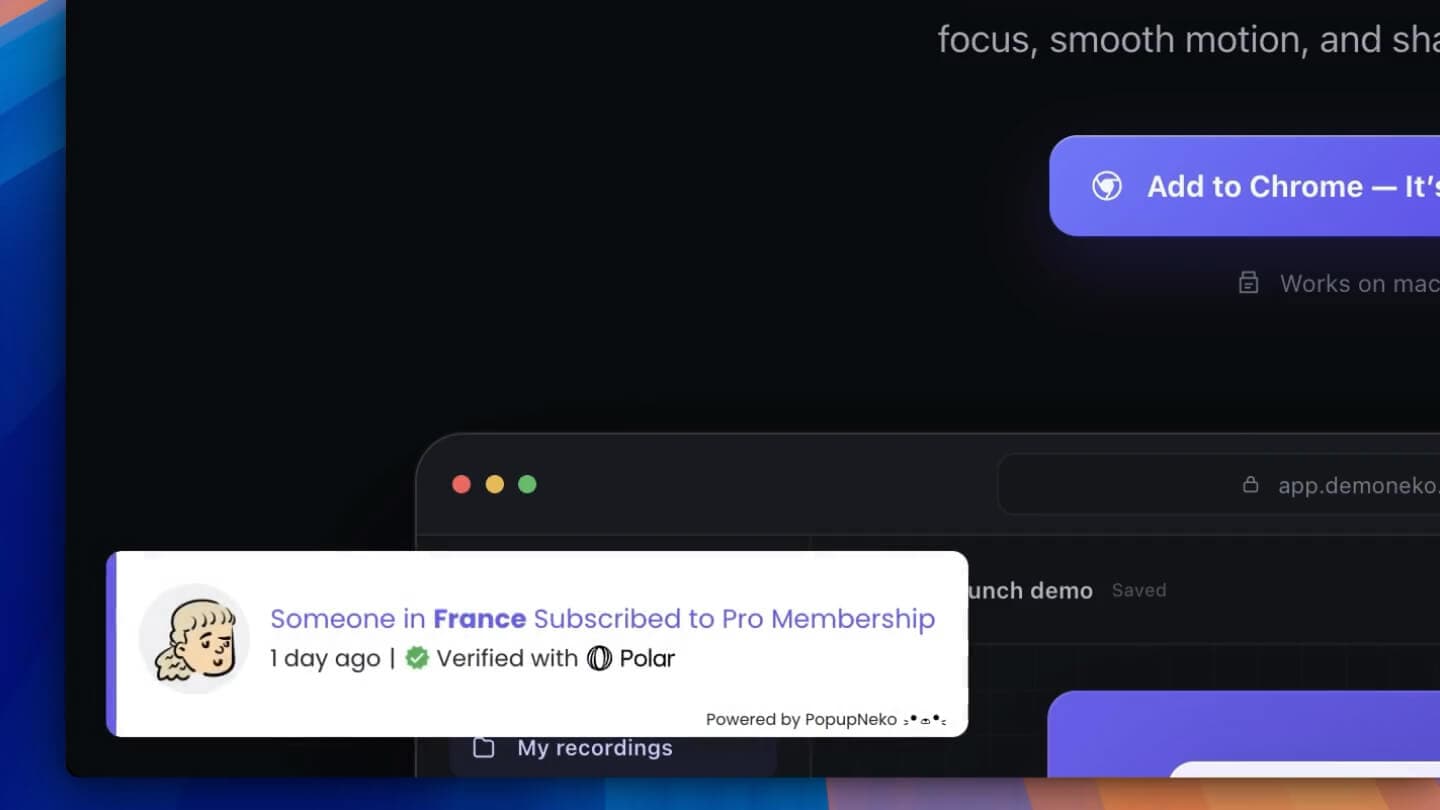
Polar gives digital product and software businesses the infrastructure to sell, but its order activity is normally visible only to the business. PopupNeko can bring eligible Polar purchases and newly created subscriptions onto your website as verified social proof notifications.
The result helps visitors see real customer momentum while keeping the Polar access token and sensitive customer details away from the public page.
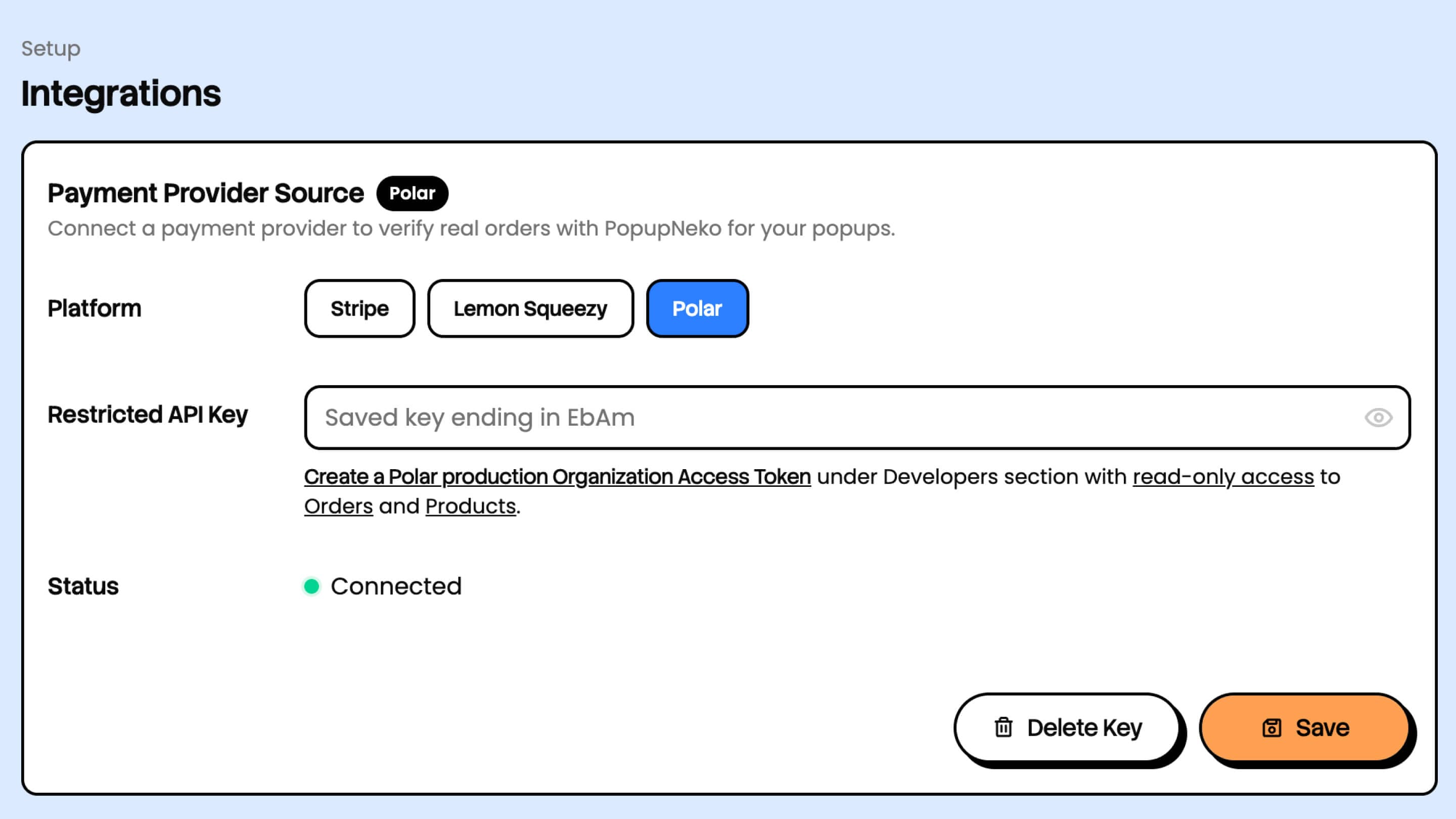
Create a read-only Polar token
Start in Polar’s developer settings and create a production Organization Access Token for the organization that owns the products you sell. Give the token read-only access to Orders and Products.
In PopupNeko, open the project’s Integrations page, choose Polar, paste the token, and save. A production organization token begins with polar_oat_.
Keep the token private and never place it in website code. PopupNeko stores provider credentials on the server and sends only sanitized display information to the installed popup script.
Use the complete Polar connection guide for the current token link, scopes, and dashboard flow.
Know which Polar orders can appear
Paid purchase orders can supply sale events. Orders created for a newly started subscription can supply subscription events. Subscription cycle or renewal orders, subscription updates, and fully refunded orders are excluded.
A multi-product sale can produce one event for each distinct product. The feed is then filtered by the event types and age window saved in your PopupNeko project.
This means a valid Polar order may still be absent from the website feed. Check whether it belongs to the connected production organization, represents supported new activity, and falls inside the configured recency period.
Sync products before publishing
Open Products and manually sync the Polar catalog. PopupNeko imports non-archived products and keeps merchant display overrides when the provider data is refreshed.
Review the information that will reach a prospective customer:
- Use a product name that matches the language on your website.
- Select an image that remains clear inside a small notification.
- Add a useful link to the matching product, plan, or pricing section.
- Keep inactive product configuration available in case the product returns later.
Clear product details make the social proof understandable. “Someone purchased Pro” is more helpful than a notification containing an internal catalog label or an unexplained identifier.
Configure the event feed
Open Events, enable Sales, Subscriptions, or both, and choose the maximum event age. Save the configuration and inspect Real events to confirm that PopupNeko can find the activity you expect.
City and country details appear only when Polar provides suitable data and the corresponding content setting is enabled. Design the text so it remains natural when location is missing; PopupNeko does not invent a place to complete a sentence.
Match the popup to your website
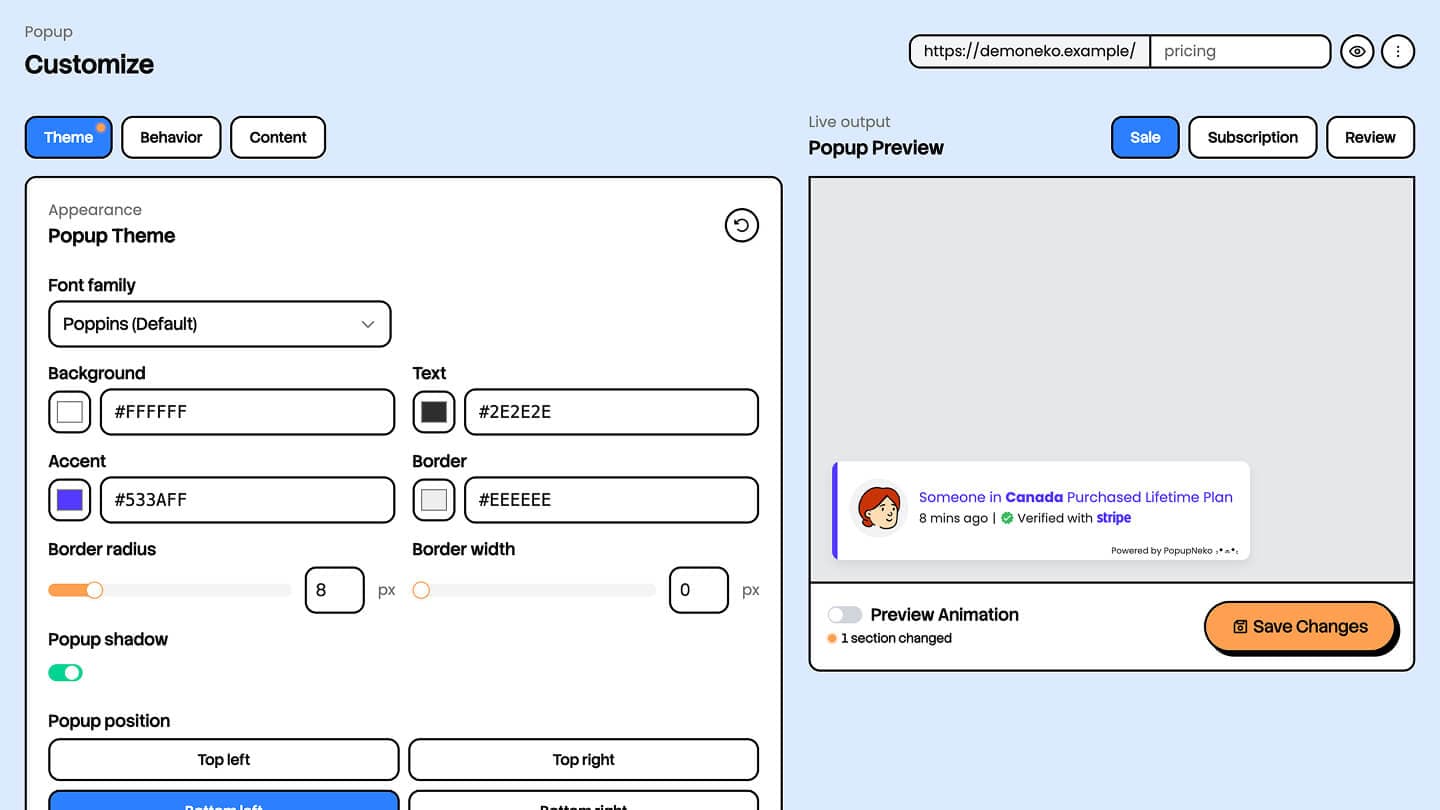
Use Customize to adjust colors, position, content templates, timing, and frequency. Keep contrast strong and check how the popup behaves over both light and dark parts of the site.
Use page targeting to focus the notification on pages where it can answer a trust question. A homepage, product page, pricing page, or focused landing page is usually more relevant than an account or support screen.
On mobile, leave enough room around fixed navigation and primary actions. A social proof notification should support the buying path, not cover it.
Install once and check the live site
Copy the project script from Install Script and add it through the appropriate website installation guide. The same project script serves the allowed pages and retrieves the saved configuration, so visual or targeting changes do not require a new Polar token in your site code.
Test the production domain in a private browser window. Confirm that the project is enabled, the script is detected, the path is allowed, the relevant event types are active, and at least one qualifying order is recent enough.
If the Polar connection fails, recheck the organization, production environment, token value, and read permissions for Orders and Products. If the connection works but no notification appears, use the troubleshooting checklist to separate feed eligibility from installation and display behavior.
Make the activity easy to trust
The strongest notification is specific about what happened and restrained about what it claims. A real product, a recent event, recognizable Polar attribution, and a link to PopupNeko’s public verification context give visitors evidence they can evaluate.
Keep the display frequency calm and the product details accurate. The goal is not to distract someone into buying; it is to make genuine customer activity visible at the moment they are deciding whether to trust the business.
See the full PopupNeko Polar integration, or start a free trial to configure verified Polar sales notifications for your website.
