
Choose where popups appear
Target your homepage, pricing page, or specific paths without reinstalling the script.
On this page
Open Install Script in your project dashboard and find the page-targeting settings. Install the script site-wide, then use these settings to choose where popups appear.
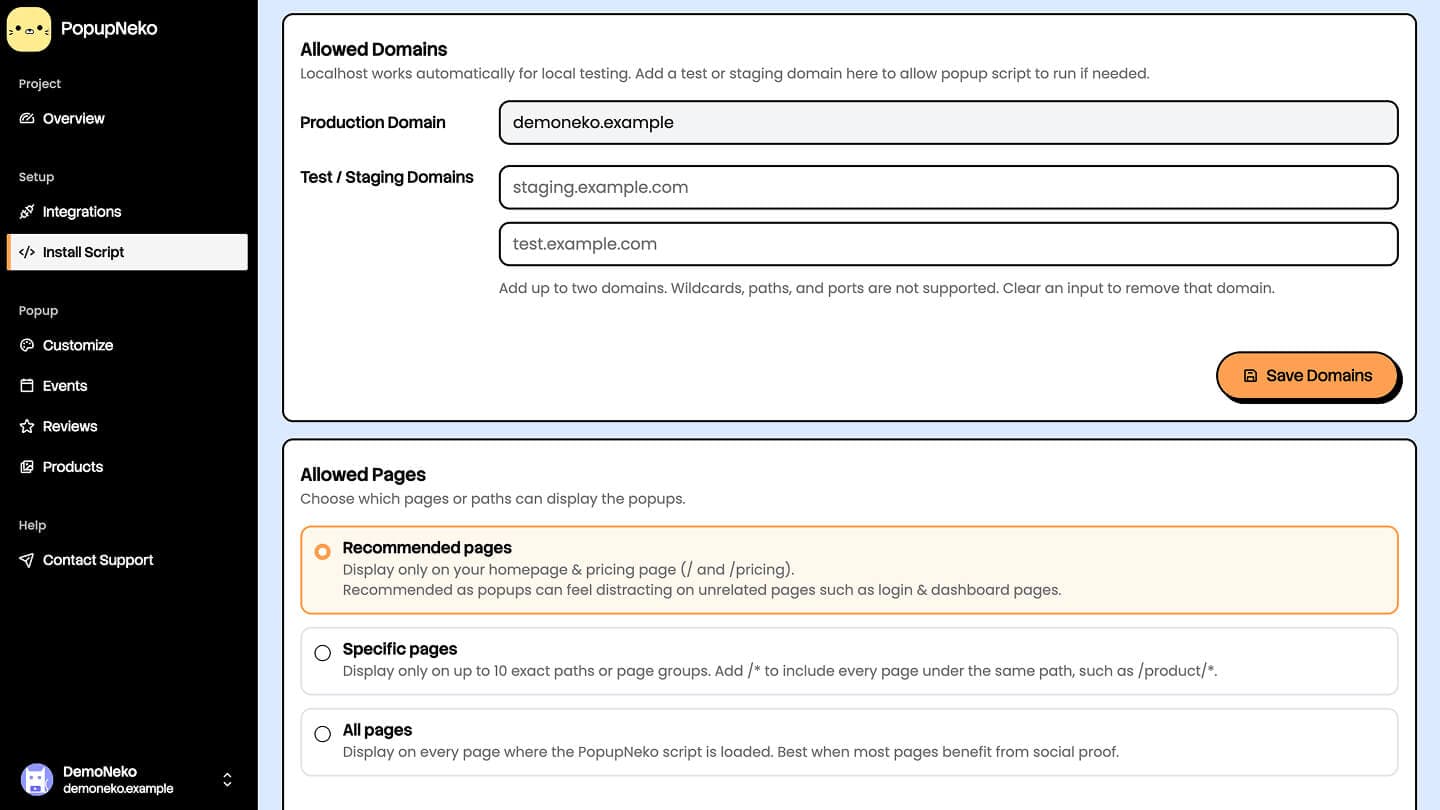
Choose a mode
Recommended shows popups on / and /pricing. This is the default for new projects.
Specific accepts up to 10 paths, starting with / prefilled. Add the exact pages or path prefixes where you want popups.
All allows every pathname on a site that actually loads the script. It does not install the embed on missing pages or authorize extra domains. Older projects can retain All until you change their settings.
Choose a mode, adjust any paths, and save the targeting settings. You do not need to edit the embed for targeting changes.
Match exact paths
Enter a path such as /pricing, not a full website URL. Matching is case-sensitive: /Pricing and /pricing are different. Trailing slashes are normalized, so /pricing/ matches /pricing.
Query strings and hashes are ignored. /pricing?campaign=summer uses the /pricing rule. You cannot use targeting to distinguish two query-string variants or hash-router screens.
Match a section of your site
Use one terminal wildcard after a slash:
/
/pricing
/product/*
/product/* matches /product, /product/widget, and deeper paths such as /product/widget/details. It does not match /products or /productivity.
Wildcards in the middle of a path are not supported. Use All instead of a root /* rule. Duplicate paths are normalized, and a Specific configuration needs at least one nonempty path.
Single-page applications
PopupNeko observes distinct pathname changes made by the History API and back/forward navigation. It clears the old popup while refreshing the new route's activity, then mounts only when the path is eligible.
You do not need to reinstall the script after React, Vue, Next.js, or Nuxt navigation. Query/hash-only changes do not trigger a refresh.
Preview and troubleshoot
The dashboard's sample popup preview ignores page targeting so you can edit appearance freely. A live-site preview uses saved targeting and still needs the installed script. Save your targeting, then test an allowed production path.
If a popup appears on the homepage but not another page, check these rules first. If it fails on a different hostname, check Allowed Domains; paths and hostnames are separate settings.