
Connect Lemon Squeezy
Connect your live Lemon Squeezy account to show eligible sales and new subscriptions in popups.
You need access to the Lemon Squeezy account that owns your store and can create API keys.
Connect your account
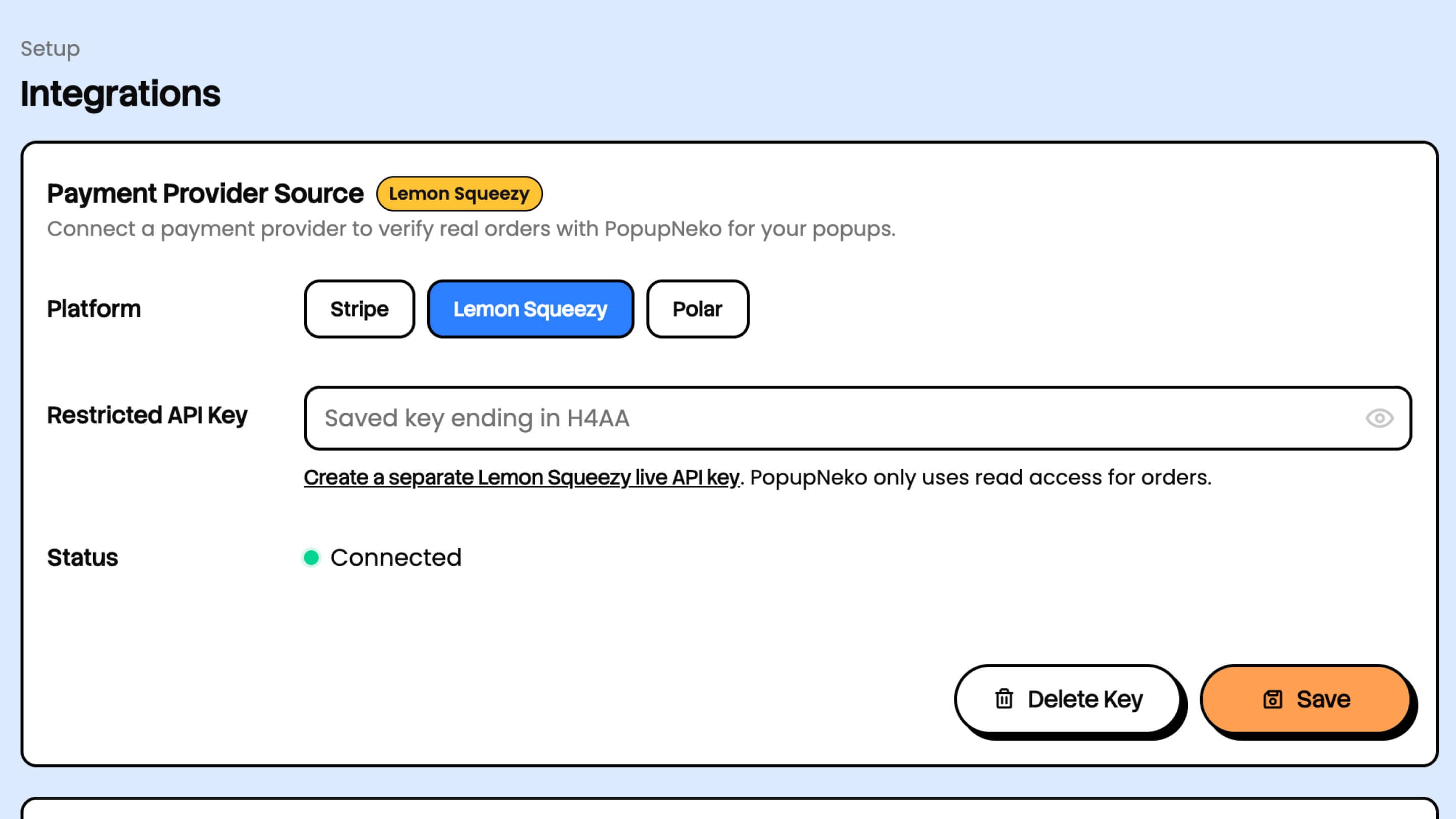
- Open Integrations in your PopupNeko project.
- Select Lemon Squeezy under Payment Provider Source.
- Follow the key-creation link to Lemon Squeezy API settings.
- Create a live API key for the account containing your store, then paste it into PopupNeko.
- Choose Save and wait for Connected.
Keep the key private. PopupNeko uses it only for read requests, but a Lemon Squeezy key may also carry permissions beyond reading. Do not put it in the install script. Refer to the official API documentation for API access details.
Which activity appears?
Paid non-subscription orders supply sale events. Orders with multiple products can supply one event per distinct product. Newly created active or on-trial subscriptions supply subscription events. Recurring renewal invoices are excluded.
The popup feed is filtered by the event types and how recent payment activity must be, as saved in Events. A recent renewal is not a new subscription popup. Customer city and country display depends on the customer/address information returned by Lemon Squeezy.
Configure the popups
Use Customize to customize your popups' appearance to match your brand. Open Products and run a manual sync. PopupNeko imports published products and preserves your display overrides on later syncs, so you can customize product names, images, and links shown in the popups.
Then open Events, enable Sales or Subscriptions, choose the age window, and save. More guidance is available under Popup customization.
Finish by installing PopupNeko on your site and checking an allowed production page.
If no events appear
Confirm the key belongs to the account containing the expected orders, the activity is live, and the event fits the supported types and age window. Use the Events page's Real events preview to inspect the available feed.
If the connection fails, generate a valid replacement key and save it. Same-provider replacement preserves product settings. See connection management before switching providers or removing a key.