
Connect Polar
Connect a production Polar organization to display verified sales and newly created subscriptions in popups.
On this page
Use an Organization Access Token with read-only access for the Polar organization that owns the products you sell.
Create and save your token
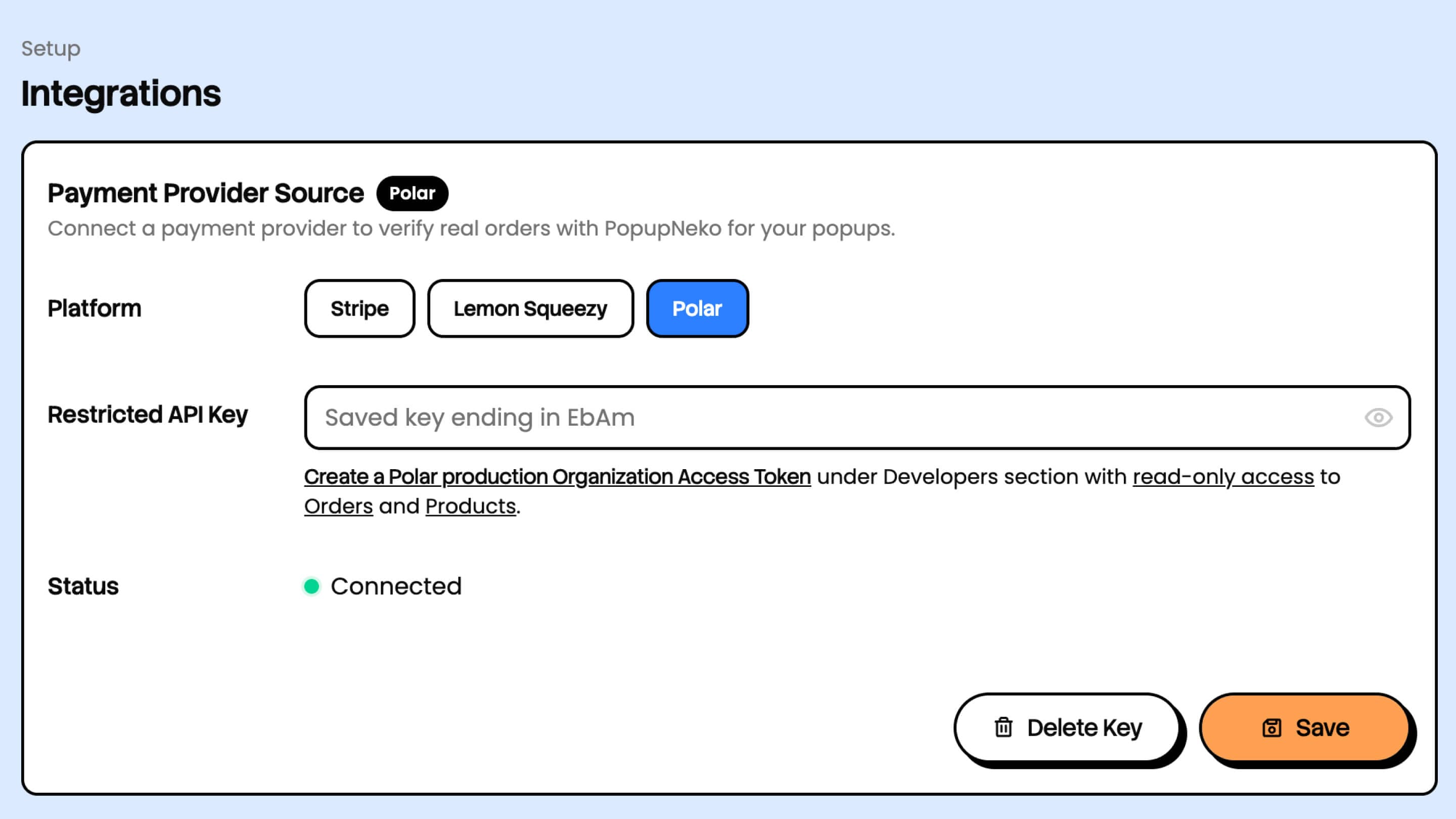
- Open your project's Integrations page and select Polar.
- Follow the token-creation link to your Polar dashboard settings.
- Create a production Organization Access Token with read-only access to Orders and Products.
- Copy the token into PopupNeko and choose Save.
- Confirm that the status changes to Connected.
The token begins with polar_oat_. Choose the correct organization, keep the token private, and do not include it in your website's code. Polar's Organization Access Token guide explains token creation and scopes.
Supported order activity
Paid purchase orders supply sale events. Orders for a newly created subscription supply subscription events. Subscription cycle/renewal orders, subscription updates, and fully refunded orders are excluded.
A sale can produce one popup per distinct product. The resulting feed is then filtered by your saved event types and how recent payment activity must be. City and country information appears only when available from the provider and enabled in your content settings.
Configure the popups
Use Customize to customize your popups' appearance to match your brand. Open Products and sync your catalog to customize the product names, images, and links shown in the popups. PopupNeko imports non-archived products; later syncs preserve merchant display overrides and retain inactive product configuration for possible reactivation.
Enable Sales and/or Subscriptions on Events, choose the age window, and select Save Changes. Use Real events to inspect eligible activity. More guidance is available under Popup customization.
Finish by installing the popup script on your website.
Connection and event checks
If verification fails, check the token, organization, production environment, and Orders/Products read permissions. If connected but empty, confirm there is an eligible purchase or newly created subscription inside the configured age window; renewals do not qualify.
For key rotation, provider changes, and disconnection, read connection management. For delivery problems, follow Troubleshooting.