
 Social Proof
Recent Sales Notifications: Examples, Best Practices & How to Add Them to Your Website
See recent sales notification examples, learn timing, mobile, privacy, and authenticity best practices, and add verified activity to your website.
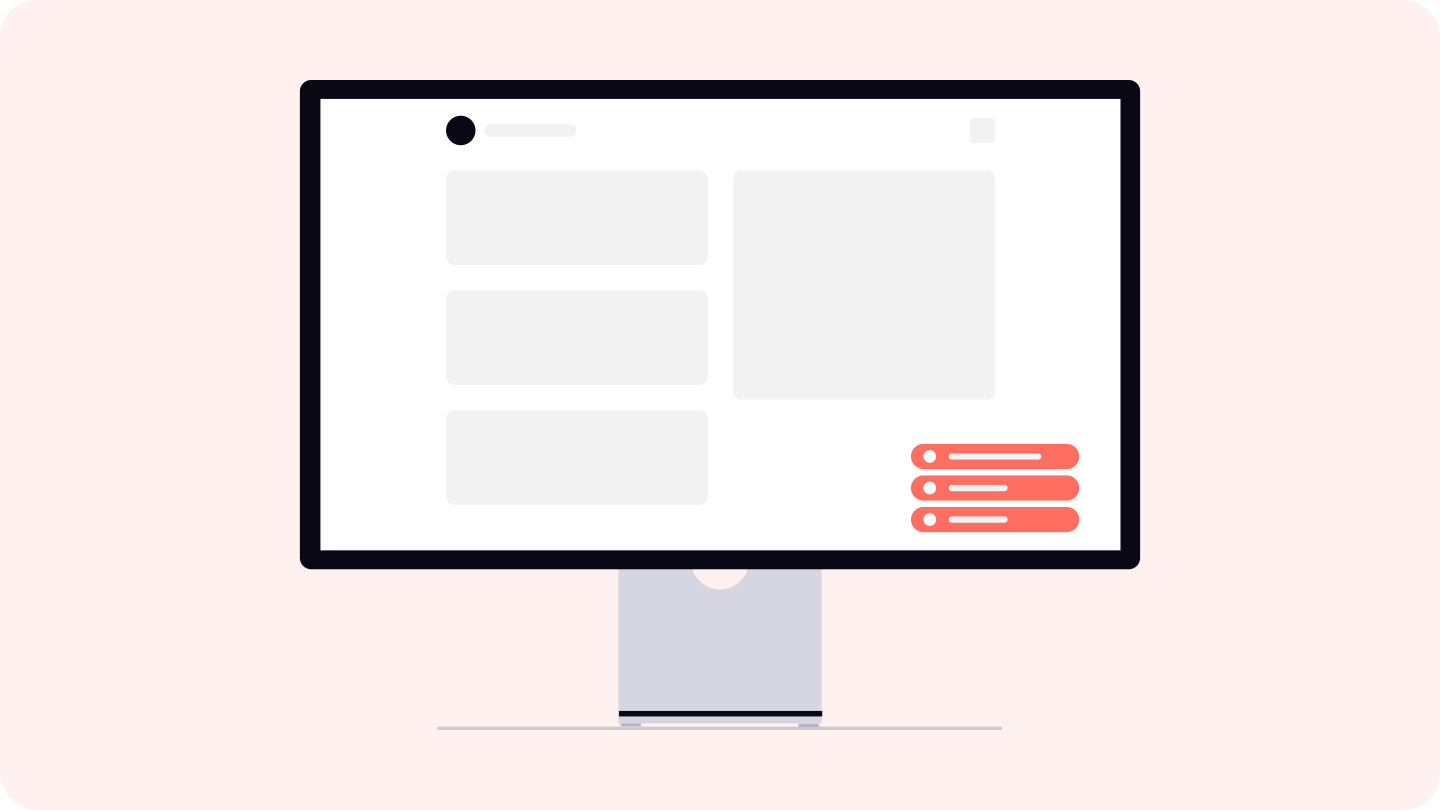
Recent sales notifications are small website messages that show customer activity such as a purchase or newly started subscription. You may also hear them called sales popups, recent purchase notifications, or social proof notifications.
The useful version is simple: it shows a real event, gives enough context to understand it, protects the customer, and gets out of the visitor’s way. The bad version invents a name, location, or countdown to manufacture pressure.
This guide explains what recent sales notifications should show, how often they should appear, how to handle mobile and privacy, and how to add source-backed activity with PopupNeko.
What are recent sales notifications?
A recent sales notification is a temporary popup that appears above the website interface, commonly near a bottom corner. It might say:
- “Someone purchased the Creator Kit 18 minutes ago.”
- “A customer in Austin started the Pro plan 3 hours ago.”
- “Someone subscribed to the Team plan yesterday.”
The notification is not the transaction itself. It is a sanitized presentation of selected event details. It should never expose payment credentials, an email address, exact billing address, or other information the visitor does not need.
Despite the common phrase “real-time sales notifications,” immediate display is not always desirable. A short delay, batching, or approximate time can protect privacy and produce a calmer experience. Accurate and recent matters more than instantaneous.
Why do websites use sales notification popups?
The main job is to answer an unspoken question: “Are people actually buying this?” That is particularly relevant for an indie SaaS, new software product, extension developer, or small online business without a widely known brand.
Recent activity can also help visitors:
- Discover which products or plans other customers choose.
- See that the business is operating now, not abandoned.
- Understand that payment or subscription setup is working.
- Move from a general landing page to a relevant product link.
Do not assume the popup will increase conversion by a universal percentage. Its effect depends on traffic quality, placement, event credibility, page design, offer strength, and whether the visitor needed that proof in the first place. Treat it as evidence to test, not a shortcut around a weak product page.
Recent sales notification examples
Good notification copy is factual and compact. Here are realistic patterns for different businesses.
SaaS subscription
Someone in Vancouver started the Pro plan 2 hours ago.
This works when a pricing-page visitor is deciding whether the product has active paying customers. “Started” is important: a renewal should not be presented as a new subscriber.
Digital product purchase
Someone purchased the Notion Finance Template 34 minutes ago.
Naming the product helps visitors discover the offer. If the notification is clickable, it should lead to that product—not a generic homepage.
Chrome extension review
“The keyboard shortcuts save me time every day.” — 5-star Chrome Web Store review
This is a review notification rather than a sale, but it can appear in the same social proof cycle. The excerpt should preserve the reviewer’s exact meaning and link to the original review when available.
Privacy-first activity
Someone started a subscription today.
When the source does not provide a suitable location or product name, omission is better than invention. A generic but honest message is still evidence of activity.
Purchases vs. subscriptions vs. reviews
These event types answer different questions.
Recent purchases
A purchase shows that someone completed a one-time transaction. It works well for templates, licenses, downloads, lifetime deals, courses, and other products sold once.
Show the recognizable product name and a relative time. Avoid emphasizing the price unless the customer knowingly made that information public and you have a clear reason to include it.
New subscriptions
A new subscription shows that someone began an ongoing relationship with the product. It is often the stronger signal for SaaS, memberships, and recurring services.
Do not count renewals as new subscriptions. Otherwise, a long-time customer’s monthly billing event can falsely suggest a new person just joined.
Customer reviews
A review shows what a customer thought, not that a purchase happened recently. Reviews are better for explaining benefits, usability, and objections. They can remain useful longer than a payment event, but the original source and wording matter.
A balanced sequence may use payment activity to show momentum and reviews to explain value. PopupNeko’s event settings let merchants enable sales, subscriptions, and reviews and choose how payment and review events are ordered.
What information should a notification show?
Include only details that help the visitor interpret the event.
Event type
Use an accurate verb: purchased, started a subscription, or reviewed. Avoid vague labels such as “converted” that mean something only inside your analytics.
Product or plan
Use the customer-facing name from the website. Internal catalog labels such as prod_01H9 or “Tier B v2” make the notification look broken.
Time
Use a relative time such as “20 minutes ago” or “yesterday,” or a broader label such as “recently.” Define how old an event may be before it leaves the feed. PopupNeko lets merchants limit eligible payment activity to the last one through seven days.
Approximate location, when appropriate
A city or country can make activity easier to relate to, but it is optional. Use only an approximate location supplied by the source, and make sure the sentence still works when location is missing.
Source or verification context
Show where the activity originated when that improves credibility. This can be a payment-platform label, original review link, or a separate verification page. Do not imply that the platform endorses the merchant.
Product link
If the event names a product, the click destination should match it. Disable the link if there is no useful landing page. A popup should never trick the visitor into an unrelated checkout.
Timing and frequency best practices
There is no universal “highest-converting” schedule. Use these principles as a starting point and adjust based on page length, visitor intent, and your own data.
Delay the first notification
Give the visitor time to understand the page before introducing motion. On a short landing page, a starting delay of roughly 8–15 seconds is a reasonable test. On a long page, triggering near the pricing or product section may be more relevant than using a timer.
Leave space between events
Do not replace one notification the instant it disappears. A quiet interval lets attention return to the page. If visitors spend only thirty seconds on the page, showing six events is unlikely to help them decide.
Limit the session
Start with a small display limit—often two or three notifications for a short visit—and increase only if engagement data and user feedback justify it. Avoid repeating the same event to fill a quota.
Match frequency to available activity
Do not stretch one old sale into a constant stream. If you have limited recent activity, show fewer notifications, widen the allowed age transparently, use reviews, or do not show a popup at all.
PopupNeko supports a 0–30 second start delay, 3–10 second display duration, a display limit of 1–20, and per-page-view, per-page, or per-session limit behavior. The popup customization guide documents the current controls.
Where should sales notifications appear?
Use them on pages where social proof helps a buying decision:
- Homepage.
- Pricing page.
- Product or plan page.
- Campaign landing page.
- Extension installation or download page.
Exclude checkout, login, account, documentation, and support pages unless you have a specific reason. A notification that covers a form field or competes with a support answer creates friction.
With PopupNeko, one installed script can serve multiple pages while page targeting controls the included and excluded paths.
Design for mobile separately
A desktop bottom corner can already contain chat, cookie controls, accessibility tools, or a sticky CTA. On mobile, those elements compete for much less space.
Before launching, test the smallest supported viewport and check that the notification does not cover:
- Navigation and back controls.
- Cookie choices.
- Pricing toggles.
- Form fields and validation messages.
- Add-to-cart or checkout buttons.
- Chat and support controls.
Keep text short enough to wrap cleanly, use a tap target large enough to operate, and avoid rapid animation. If you cannot find a safe mobile placement, hide the notifications on mobile. PopupNeko includes a mobile visibility control for that reason.
How to avoid annoying or fake-looking notifications
Visitors are familiar with manipulative ecommerce patterns. A popup becomes suspicious when it moves too often, uses implausibly specific details, repeats the same event, or appears alongside fake scarcity.
Avoid:
- Invented first names, cities, purchases, or reviews.
- A notification appearing the instant every page loads.
- The same “just purchased” event repeating for weeks.
- Aggressive sound, vibration, or bouncing animation.
- Copy such as “Buy now before you miss out!” inside a proof notification.
- A live counter that only increases in the browser.
- Hiding the source while adding a generic “verified” badge.
Regulators pay attention to these patterns. In a 2022 sweep, European consumer-protection authorities found that 148 of 399 screened shops used at least one of three dark-pattern categories; 42 used fake countdown timers. See the European Commission sweep findings.
The lesson is broader than timers: evidence should help someone evaluate a decision, not fabricate pressure.
Privacy considerations
Use data minimization. A recent purchase notification generally does not need:
- Customer name.
- Email address.
- Exact street address.
- Payment amount.
- Card or bank details.
- Order number.
- IP address.
Review your privacy notice, contracts, provider terms, and applicable laws before publishing customer information. If you plan to name a customer or company, obtain appropriate permission. Delay or aggregate events when a very small customer base could make an “anonymous” event identifiable.
PopupNeko’s public script receives sanitized display information rather than payment-provider credentials. Approximate location appears only when suitable source data is available and the merchant enables it; PopupNeko does not invent a place to complete the message. Review the PopupNeko Privacy Policy for more information.
Why real or verified activity is better than fabricated activity
Fabricated proof has three costs.
First, it can damage the trust the popup was meant to create. Visitors who notice repeated or implausible events may question every other claim on the page.
Second, it makes optimization meaningless. You cannot learn whether genuine customer momentum helps visitors if the experiment is built on invented input.
Third, fake reviews and testimonials can create legal risk. The U.S. Federal Trade Commission’s Consumer Reviews and Testimonials Rule, effective October 21, 2024, prohibits conduct involving fake or false reviews and testimonials and allows civil penalties for knowing violations. Read the FTC’s business guidance. This is general information, not legal advice.
Source-backed activity is preferable because the system constrains what can be shown and preserves context. “Verified” should still be explained precisely: a connected data source does not mean the provider endorses the merchant or guarantees every marketing claim.
How to add recent sales notifications with PopupNeko
PopupNeko is designed for businesses that want to display real activity from supported sources rather than type fictional events.
1. Create a project
Add the production website domain to a PopupNeko project. You can configure and preview the popup before enabling it on the live site.
2. Connect a supported source
Choose one payment provider per project:
- Stripe for eligible paid Stripe Checkout purchases and newly started Checkout subscriptions.
- Lemon Squeezy for eligible paid orders and newly created active or on-trial subscriptions.
- Polar for eligible paid purchase orders and orders associated with newly started subscriptions.
For review notifications, connect a Chrome Web Store listing, confirm ownership, import eligible reviews, and select the excerpts you want to display.
Provider-specific eligibility matters. Direct Stripe Charges, subscription renewals, unsupported or refunded activity, and unselected reviews do not become new-customer popups. Use the integration documentation to check the current rules before comparing the feed with every record in a provider dashboard.
3. Prepare product details
Sync the provider catalog, then review the display name, image, and customer-facing product link. Popup copy should use the same naming as the page the visitor is reading.
4. Choose events and recency
Enable Sales, Subscriptions, Reviews, or an intentional mix. Choose a one- to seven-day age window for payment activity and preview real events. Reviews use the saved selection rather than the payment-age filter.
5. Customize behavior and appearance
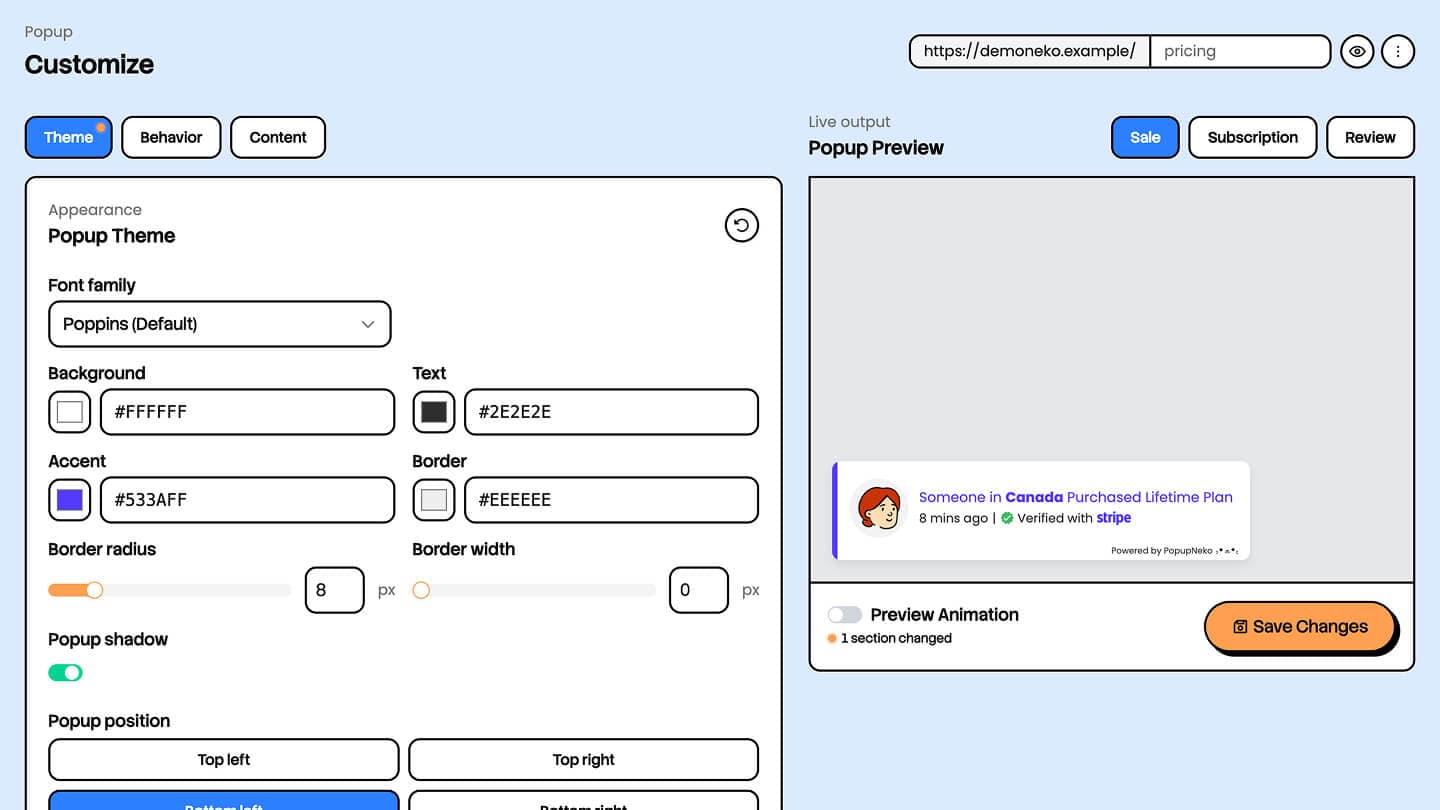
Match the website’s colors and typography, choose a corner that does not block controls, and set the start delay, display duration, animation, limit, and mobile behavior. Keep provider or source context legible.
6. Target the right pages
Start with the homepage, pricing page, or relevant product page. Exclude pages where motion or social proof is unnecessary.
7. Install and verify
Add the project script once through the relevant installation guide. Test the production site in a private browser window, check the allowed path, and verify that live events look correct at desktop and mobile sizes.
For Stripe specifically, How to Add Stripe Sales Notifications to Your Website walks through the setup and placement decisions in more detail.
Pre-launch checklist
Before publishing recent sales notifications, confirm that:
- Every event comes from a real supported source.
- Purchases, new subscriptions, renewals, and reviews are labeled correctly.
- Product names and links match the website.
- No sensitive customer information is displayed.
- Timing and frequency feel calm during a full page visit.
- The notification does not cover controls on mobile.
- Old activity leaves the feed when expected.
- Source and verification language does not imply endorsement.
- Analytics can distinguish impressions, clicks, and final website conversions.
Recent sales notifications work best as a modest piece of evidence. They cannot replace a clear product, fair price, or usable checkout—but they can make genuine customer momentum visible when a visitor is deciding whether to trust a lesser-known business.
If that is the missing signal on your website, start a PopupNeko free trial and connect a supported payment or review source.
