
Choose your events
Control event types, payment freshness, and the order of sales, subscriptions, and reviews.
On this page
Open Events in your project dashboard. These controls decide which verified activity enters your popup queue. Appearance and message templates are managed separately in Customize.
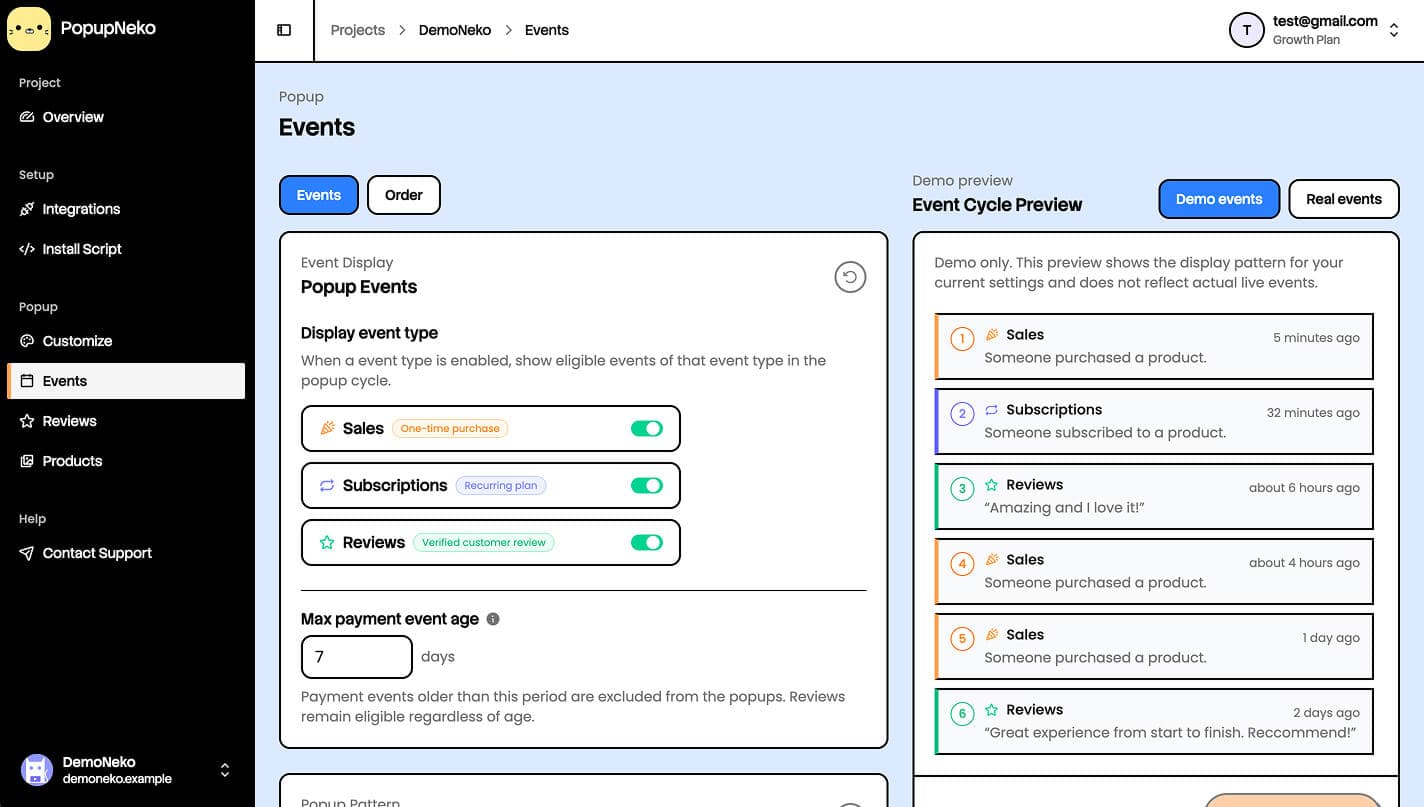
Enable event types
- Sales are eligible completed one-time purchases from your connected payment provider.
- Subscriptions are newly created subscriptions. Renewals do not generate subscription popups.
- Reviews are eligible verified reviews you have selected for popup display.
Sales and Subscriptions require a connected payment provider. Reviews require a connected review source with confirmed ownership. If a type is unavailable, finish its integration setup first.
Enabling a type does not create events. A source must return matching activity, and reviews must be selected and saved. If every type is disabled or all events are filtered out, nothing appears.
Set how recent payment activity must be
Choose how recent sales and subscription events must be, from 1 to 7 days. The default is 7 days.
The age limit does not apply to review events. Reviews use their provider date when available and remain eligible according to your saved selection and source state.
Choose an order
Payments first puts recent payment events before the review queue. Balanced mix distributes reviews among payment events. Fixed review cadence lets you choose 1–5 reviews after every 1–5 payment events.
For example, a cadence of two payments followed by one review produces a repeating mix while both kinds of activity are available. The default fixed-cadence values are two payments and one review. Remaining eligible reviews can follow the payment queue; PopupNeko does not duplicate a review to fill a batch.
The delivered queue is capped at 20 events. Your Customize display limit can reduce the number actually shown during a page view or session.
Preview your queue
The Event Cycle Preview starts in Demo events, which illustrates your draft ordering without requiring real customer activity.
Switch to Real events to request eligible activity from your connected source. This preview applies unsaved Events rules with saved Customize templates. It does not publish those rules, modify the live popup queue's saved configuration, or record impressions and clicks.
An empty Real events preview can mean there are no eligible recent payments, no saved selected reviews, or an unavailable source. Confirm your connection and try a wider age window before assuming installation is broken.
Save your changes
Choose Save Changes to publish the Events-owned settings together. Each section can be reverted to its last saved values. Saving Events preserves your Customize settings.
After saving, reload an allowed page or navigate to a distinct pathname on your installed site. Check Troubleshooting if the expected popups still do not appear.