
Customize your popups
Adjust appearance, timing, and content with a live preview before saving.
On this page
Open Customize in your project dashboard. Theme, Behavior, and Content share one draft and one Save Changes action. The preview shows your edits immediately; your installed popup uses saved settings.
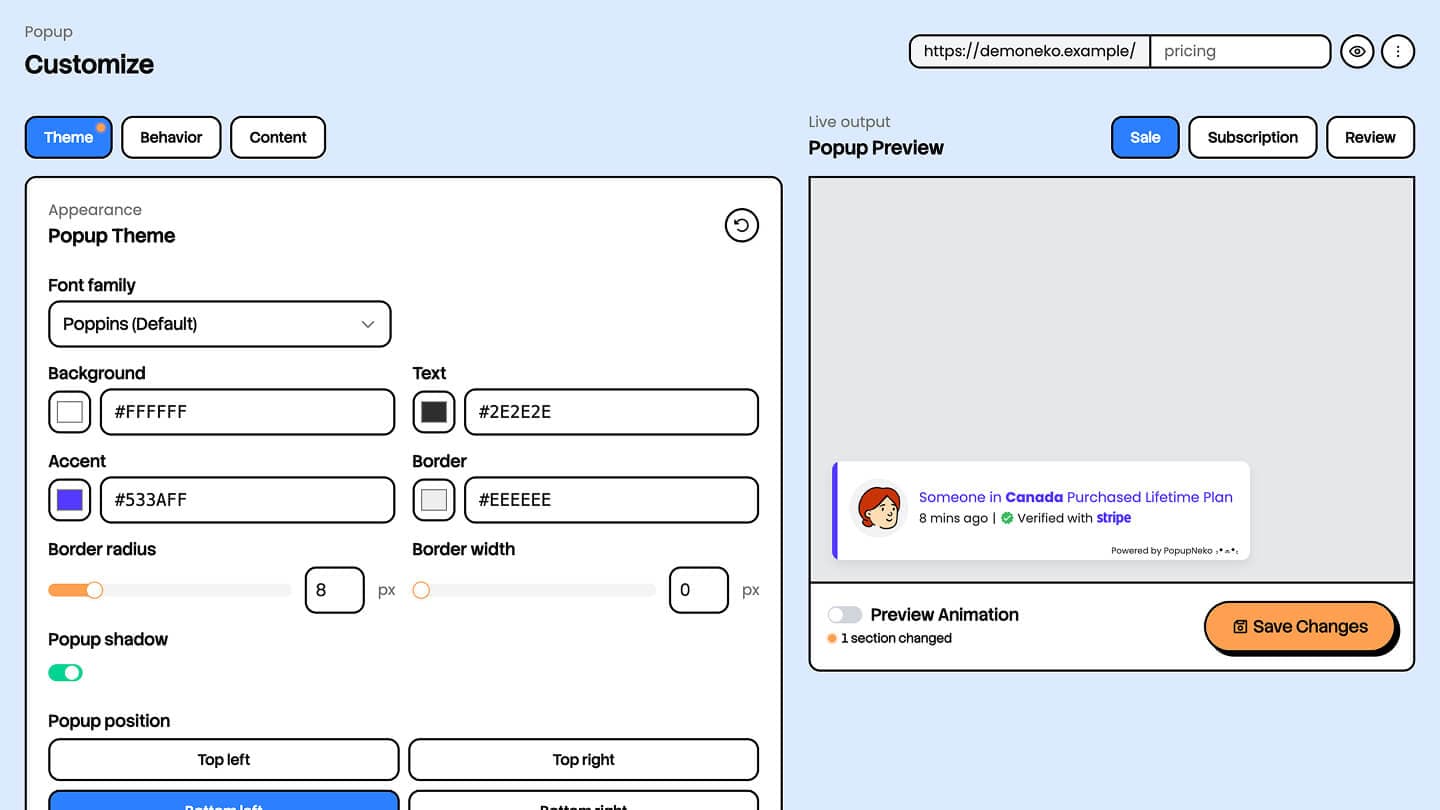
Theme
Choose a font, background, text, accent, and border colors. Colors use six-digit hex values such as #533AFE. You can adjust the border radius, border width, shadow, popup corner, image background, and image radius.
Choose a decorative line and its edge, and configure a star or shield verification badge in green or the accent color. Reviewer and avatar images remain circular; the image radius applies to product, fallback, and emoji visuals.
The default theme uses Poppins, a white background, a purple accent, and bottom-left placement. Choose the website font option to inherit the host site's font on your live installation; the dashboard preview uses a system fallback for that option.
Behavior
Choose a slide or fade animation. Display duration accepts 3–10 seconds, animation duration accepts 100–2,000 milliseconds, and the start delay accepts 0–30 seconds.
You can start after a delay or when a selected section becomes visible. For section-based activation, use a valid CSS selector that exists on the target page, such as #pricing. When that section exists, it must become visible before the popup starts. If it is not found, the configured fallback delay is used.
Choose a display limit of 1–20 popups and when that limit resets:
- Per page view: starts a new allowance on each page load or distinct SPA pathname initialization.
- Per page: keeps an allowance for each page during the browser-tab session.
- Per session: shares the allowance across pages during the browser-tab session.
PopupNeko does not repeat events just to reach your limit. If three eligible events are available and your limit is ten, it displays at most those three. Hovering pauses rotation. You can also hide popups on mobile.
Preview animation
The Preview Animation switch changes the dashboard preview for your current editing session. It does not save a separate live-site setting. Theme/content editing starts with a static preview; behavior editing can demonstrate the animation and timing.
Content and images
Global display controls let you show city/country, platform logos, product links, and original review links. The Sales, Subscriptions, and Reviews groups let you choose the visual mode: product or reviewer image, avatar, emoji, or no image, as appropriate for the event.
Each event type can inherit the theme accent or use its own accent color. Product artwork comes from your Products settings. Unavailable images use a fallback rather than a broken image.
When product links are enabled and a product URL exists, the product name and product image become links. Original review links apply to the reviewer image and rating/name attribution; the review excerpt itself is not a link.
Write transaction messages
Sales and subscription templates support plain text, line breaks, bold formatting, and two tokens:
Someone in <b>{{customer.location}}</b> purchased {{product.name}}Use the token controls in the editor to insert {{customer.location}} or {{product.name}}. Each token can appear once per message. Templates must be nonempty, at most 180 characters, and use matching <b> and </b> tags for bold text. Other HTML and incomplete token braces are rejected.
Location depends on available provider data and your city/country controls. Reviews use a verified source excerpt instead of a merchant-written transaction template; edit those on Reviews.
PopupNeko branding
Starter includes the Powered by PopupNeko footer. Remove PopupNeko branding is available with paid or complimentary Growth access. The verified-source attribution remains separate from the PopupNeko branding control.
Save, revert, and preview on your site
Choose Save Changes to publish all Customize sections together. Section revert controls restore the last saved values for that section. Restore defaults changes the draft and still requires saving.
The live-site preview row opens your installed website using saved settings and a temporary preview URL. Save first if you want to see new changes there. This preview honors page targeting and requires the script on the page; it can bypass the project-enabled and billing-access gates for the authorized preview. Keep temporary preview URLs private.
The dashboard sample preview uses unsaved draft settings and does not apply page targeting or record popup analytics. See Events for demo and real activity previews.