
Manage your products
Sync your provider catalog and customize the product names, images, and links shown in popups.
Open Products after connecting Stripe, Lemon Squeezy, or Polar. The page shows products belonging to the project's current payment provider.
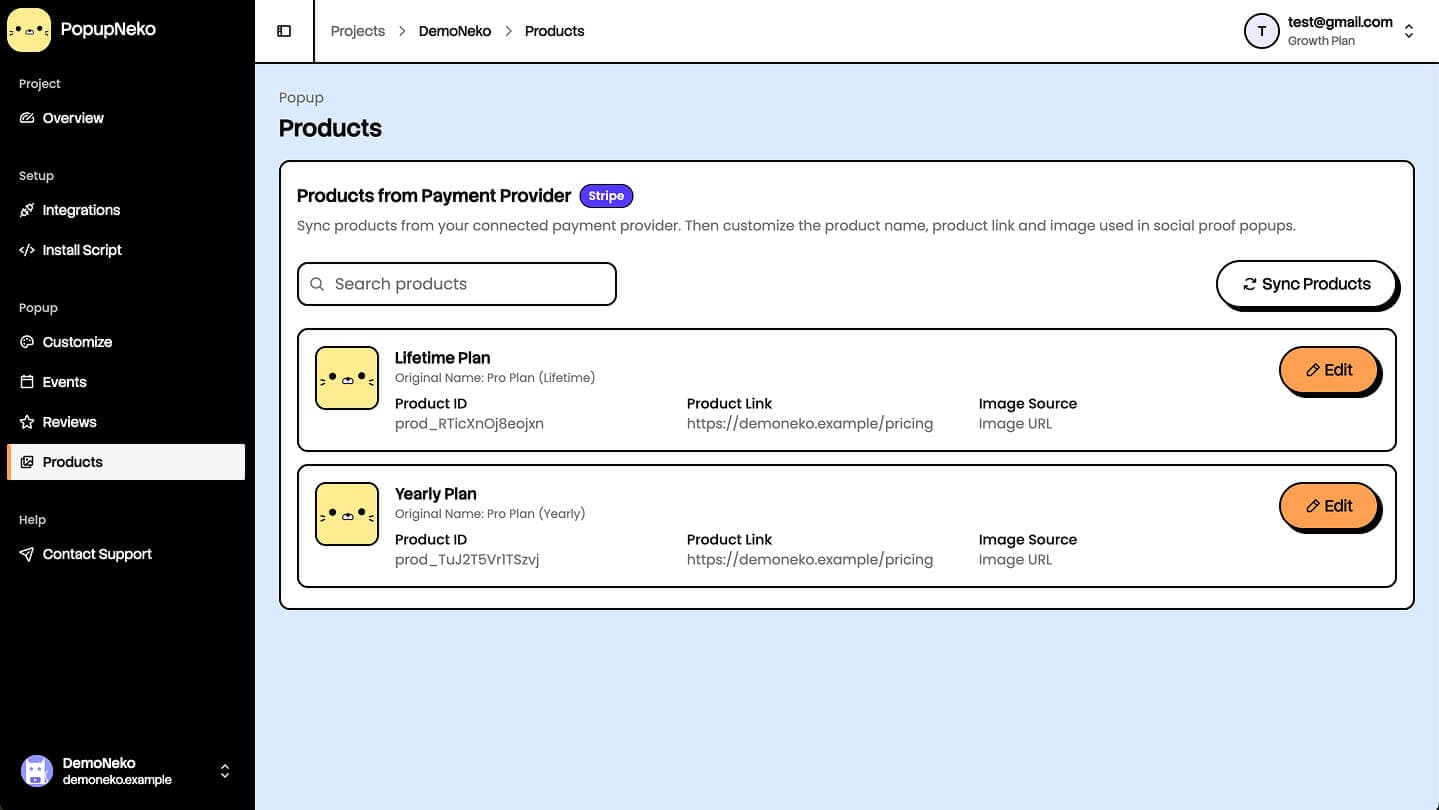
Sync your catalog
Run the manual sync action on Products. Connecting a payment key alone does not sync the catalog.
PopupNeko imports currently available products: active Stripe products, published Lemon Squeezy products, and non-archived Polar products. A later sync refreshes provider fields while preserving your merchant display overrides.
Products that disappear from the provider's active result become inactive and are hidden from the active list. Their saved configuration remains available if the product becomes active again.
Edit a product
Open a product's edit dialog and adjust its display name, product link, and image source. The overrides change PopupNeko's presentation, not the product in your payment provider.
You can use the provider image, upload an image, provide an external image URL, or choose the fallback. Uploaded artwork accepts JPG, PNG, or WebP up to 300 KB. Use a publicly accessible image URL when selecting an external source.
Save the product changes, then enable the product-image mode in the relevant Sale or Subscription group on Customize if you want the image visible. A saved product image does not override a popup configured with no image.
Enable product links
Set a product URL and enable the product-link option in Customize. When the event has a product URL, the product name token and product image can link to that destination. Other parts of the popup retain their own behavior.
Product links receive PopupNeko referral parameters only where those parameters are not already supplied by the destination URL. Your own existing attribution values are preserved.
Provider changes
Replacing a key for the same provider preserves synced products and overrides. Deleting only the key also preserves that configuration for reconnecting the same provider.
Switching to a different payment provider is different: after confirmation and successful verification, the old provider's product records and uploaded artwork are removed. Sync the new provider's catalog afterward. See connection management.
Check the result
Use the popup preview to inspect image mode and layout, and Real events on Events to check available product-enriched activity. Live popups use the latest saved product configuration when they next initialize.
If an image is missing, check the active provider, product sync, saved image source, URL accessibility, and selected popup image mode. Slow or broken images use fallbacks. See Troubleshooting for delivery checks.